
KiseraIn testing · Coming to the Mac App Store
Screenshots sorted by project. Your Desktop stays clear.
- Every capture is filed into a project folder the moment you take it.
- The editor opens at once, ready for arrows, text and boxes.
- Find any picture again by its name or by a word inside it.
- Free. No account, no data collected.
- Mac
- macOS 15 or later
- Price
- Free
- Privacy
- No data collected
The Library
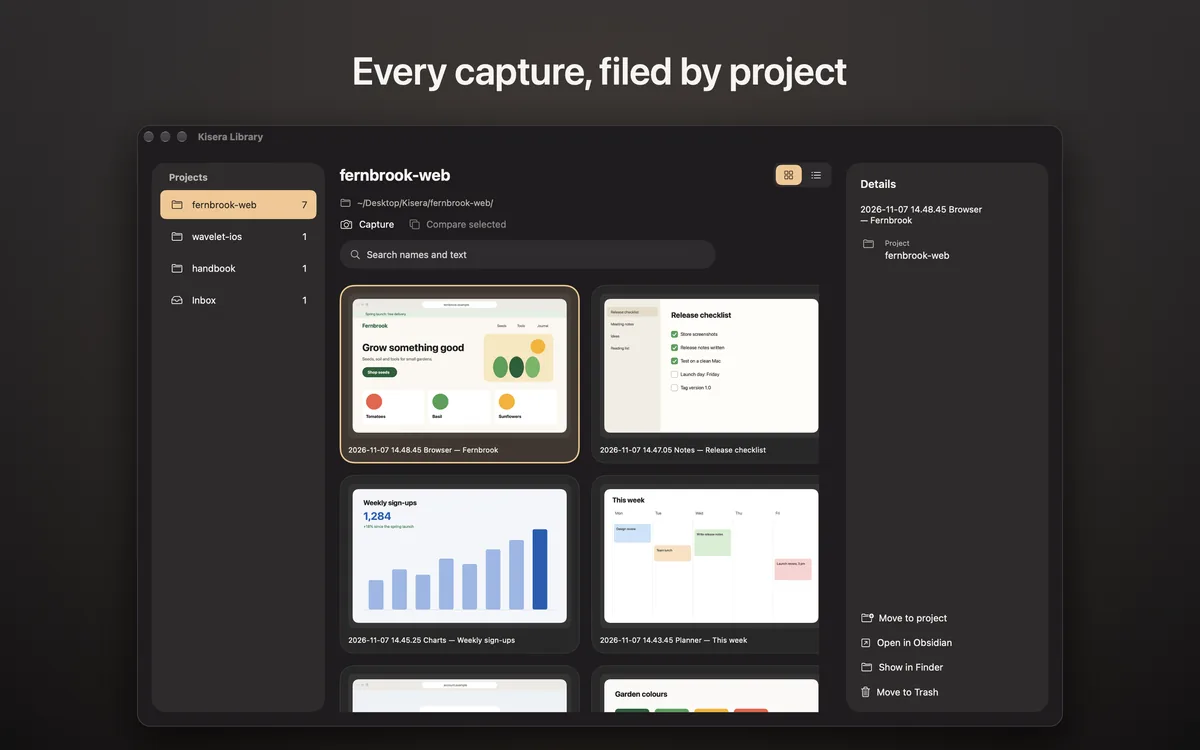
No more messy Desktop
Sick of a Desktop covered in loose screenshots? Kisera files every capture into a project folder the moment you take it, so your Desktop stays clear and every picture is easy to find again, by its name or by any word in it.
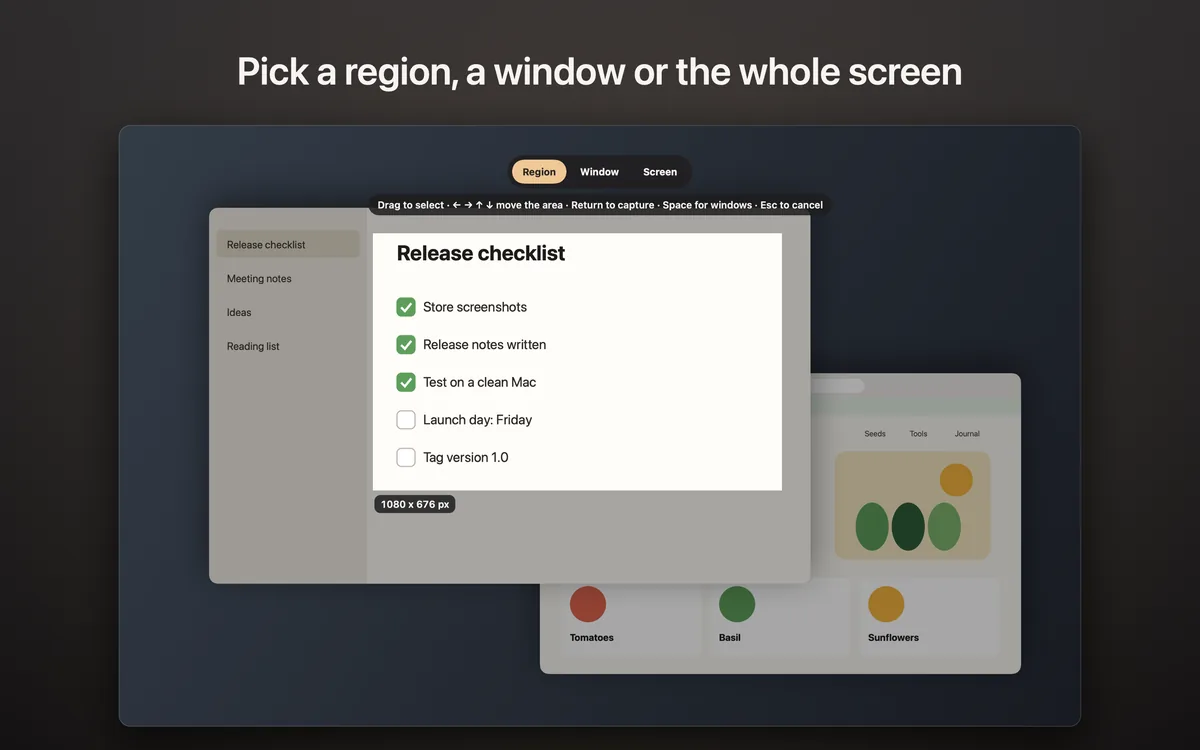
Press a key, pick what you want, and the editor opens on your capture at once.
Today: Kisera is in testing. It is coming to the Mac App Store, free.
Capture
- Region (⌥⇧4): drag over any part of the screen. Arrow keys move the area, Shift resizes it.
- Window (⌥⇧5): click a window, or move between windows with Tab and the arrow keys.
- Full screen (⌥⇧3): click a display, or press Return.
- Repeat last (⌥⇧R): the same area again in one key.
- A short hint under the picker shows every key while you choose. Esc cancels.
- Change any shortcut in Settings. If you prefer ⌘⇧3, ⌘⇧4 and ⌘⇧5, Kisera can use them once you turn off the macOS screenshot shortcuts.
Annotate
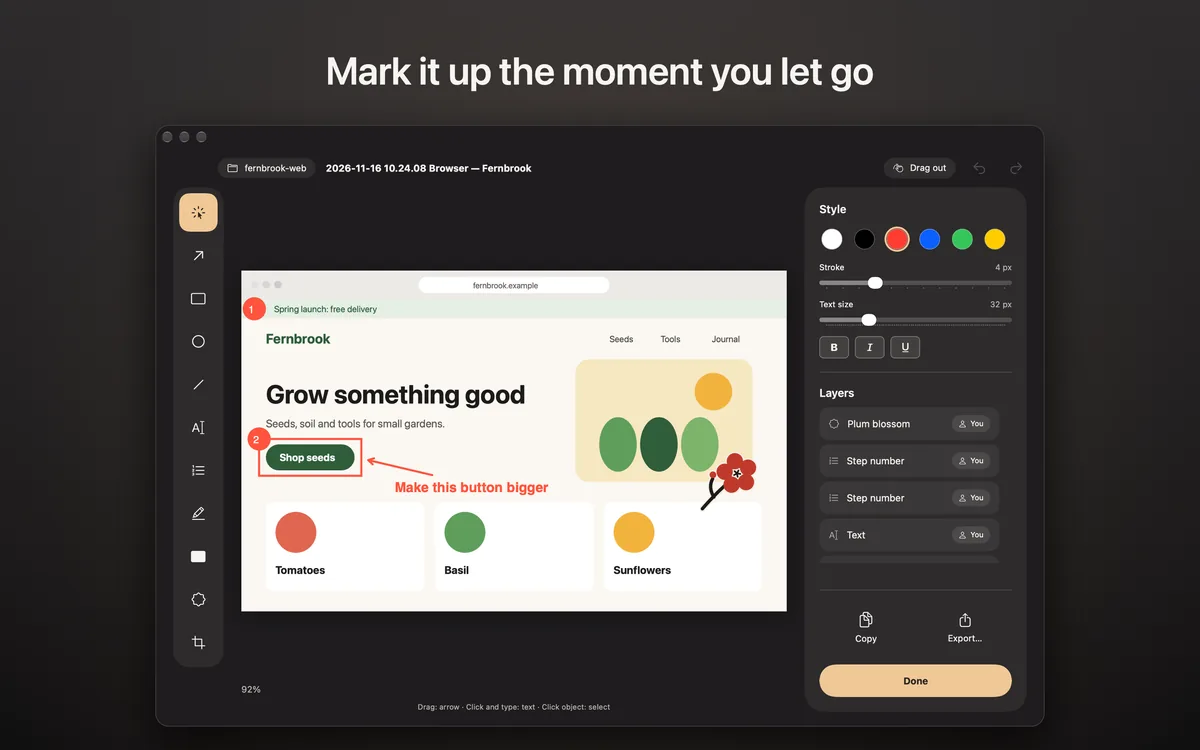
The editor opens the moment you let go, so you can start drawing straight away.
- Arrows, lines, boxes, ellipses and a highlighter
- Text and captions, with bold, italic and underline
- Numbered steps for step-by-step guides
- Stamps, including a set drawn in ink and cinnabar
- An opaque cover to hide private details before you share
- Crop to exactly the part you need
- Undo and redo, colours, stroke and text size
- Copy, Export, or Done: your marks are saved with the capture, and you can change them later
Organise
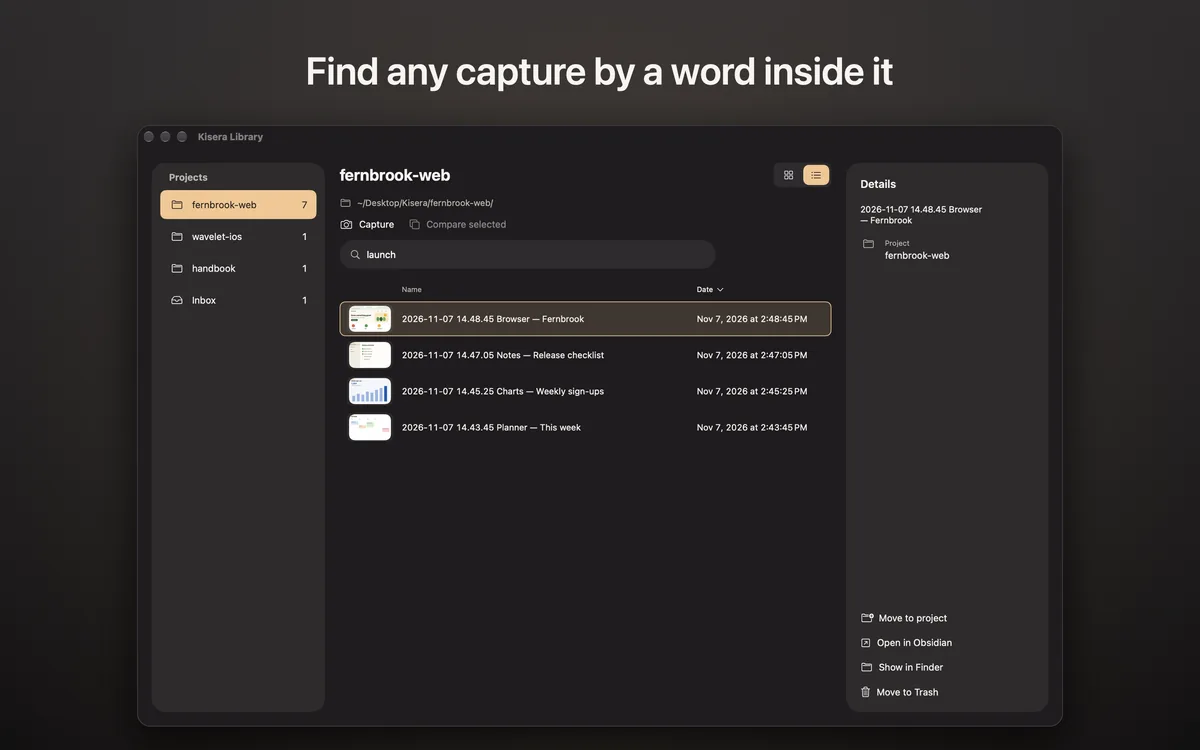
- A Library of every capture, as a grid or a list, sorted by date or name
- Search by name or by the text inside a picture, read on your Mac
- Projects: send captures to the project you are working on, and switch with ⌥⇧P
- Compare two captures side by side
- Move captures you no longer need to the Trash
- Each capture is a picture plus a Markdown note in a plain folder, so it opens in Finder and in note apps like Obsidian
Made for the Mac
- Lives in the menu bar, out of your way
- Follows your Mac’s light or dark appearance
- Works from the keyboard: every capture, selection and editor key is listed on one Keyboard page in Settings
- VoiceOver labels throughout
- Launch at login, if you want it
- In English and Simplified Chinese
- macOS 15 or later, on Apple silicon and Intel Macs
Free, no data collected
Kisera is free, with no in-app purchase. It has no account and no analytics, and it collects no data. Text in your captures is read on your Mac, never sent anywhere. Your captures stay in the folder you choose. Kisera’s privacy policy
Kisera questions
Is Kisera available yet?
Not yet. Kisera is in testing and coming to the Mac App Store. There is no download link until it is there.
Link to this answerWhere do my captures go?
Into the folder you choose, sorted by project. Each capture is a picture plus a Markdown note, so it opens in Finder and in note apps like Obsidian, with or without Kisera.
Link to this answerDoes Kisera send my screenshots anywhere?
No. Kisera has no account and no analytics, and it collects no data. Text in your captures is read on your Mac, never sent anywhere.
Link to this answerCan I keep using ⌘⇧3, ⌘⇧4 and ⌘⇧5?
Yes. Kisera's own keys are ⌥⇧3, ⌥⇧4 and ⌥⇧5. If you prefer the macOS keys, turn off the macOS screenshot shortcuts and Kisera can use them instead.
Link to this answerWhich Mac does Kisera need?
A Mac with macOS 15 or later, Apple silicon or Intel. Kisera is in English and Simplified Chinese.
Link to this answerKisera availability
Coming soon
Free · macOS 15 or later